Send a support request
- In the menu, under Settings, select Help & Ideas, then Contact support.
-
Check your name and email, then type a Subject (1). If there's a Request type, pick the one that fits.
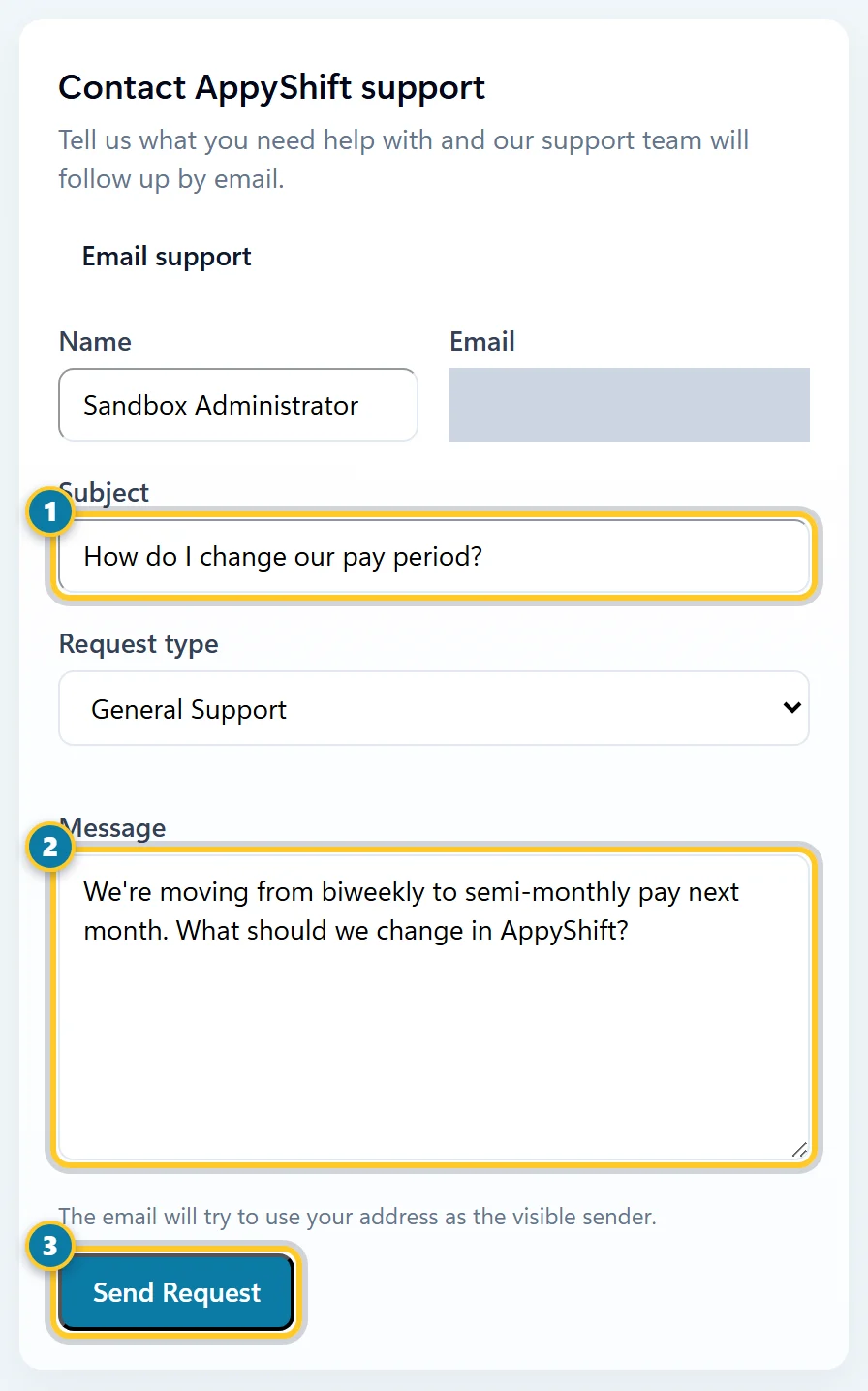
What it's about (1), the details (2), then send it (3). - Describe what you need in the Message (2). Say which page you were on and what you expected to happen.
- Select Send Request (3).
Our support team follows up by email. Under Your tickets, you can see each request you sent and its status, such as Waiting on AppyShift, Waiting on Client (waiting for your reply) or Closed. You can also email support directly with Email support.
Share or vote for an idea
- On Help & Ideas, go to Share an Idea.
- Give it a short Title, and under Details describe what you'd like AppyShift to do and why it would help.
- Select Share Idea. It shows under Your Ideas.
Under Ideas, see what other customers asked for, sorted by Popular or Newest, and vote for the ones you'd like most.
Note
Support requests and ideas are on every plan, for managers and admins. Guides are open to everyone on every plan. Employees who need help should ask their manager.