Check these first
- They're using your company's sign-in link. It looks like
appyshift.com/portal/your-company/login. - The email on their employee record is spelled right.
- They're an active employee and allowed to use the employee app.
- They've tried Forgot? next to the Password box to reset their password.
Check employee-app access
- Open Employees, select the person, then open HR & Access.
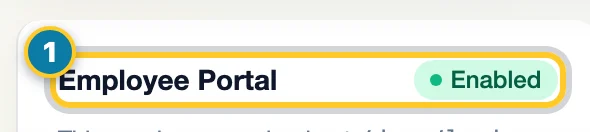
- Find the Employee Portal card (1). Check whether it says Enabled or Disabled and confirm the employee sign-in link.
- If access is disabled, use Enable portal access only when the employee should have access. If already enabled, check the email and password-reset options instead of creating another employee record.
Inactive and terminated employees cannot sign in. Check their actual employment status before changing access.
If they lost their two-step device
Have them try another sign-in method they already set up. If they still cannot get in, a person with permission to manage employee portal access can use Reset Two-Step Sign-In on the Employee Portal card when it is shown. Read the confirmation: this also removes their passkeys. They must set up two-step sign-in again if your company requires it.
If they use a phone number instead of email
Check the Mobile Phone on the employee profile and whether company text sign-in is enabled. A text invitation and a sign-in code are different messages. See Invite employees and let them sign in by text.
If they land in the wrong company
Have them sign out, then use your company's own sign-in link. People who work for more than one company may need to choose the right one after they sign in.
If onboarding blocks their home page
Your company may require onboarding before the rest of the app opens. Have them finish their required tasks, or check your onboarding settings.
If your company turned on two-step sign-in, they also need their code or passkey. They can use another sign-in method if they set one up.