Before you start
- You need permission to manage security and access to turn this on, and to manage employee portal access to send invites. Company admins have both.
- Each employee needs a Mobile Phone on their profile.
- Only text someone who gave you their number and expects a text from you.
Turn it on
- In the menu, select Settings > Company, then Company Settings.
- Find Sign In and Invite by Text, tick Let employees sign in and be invited by text, then select Save Text Setting.
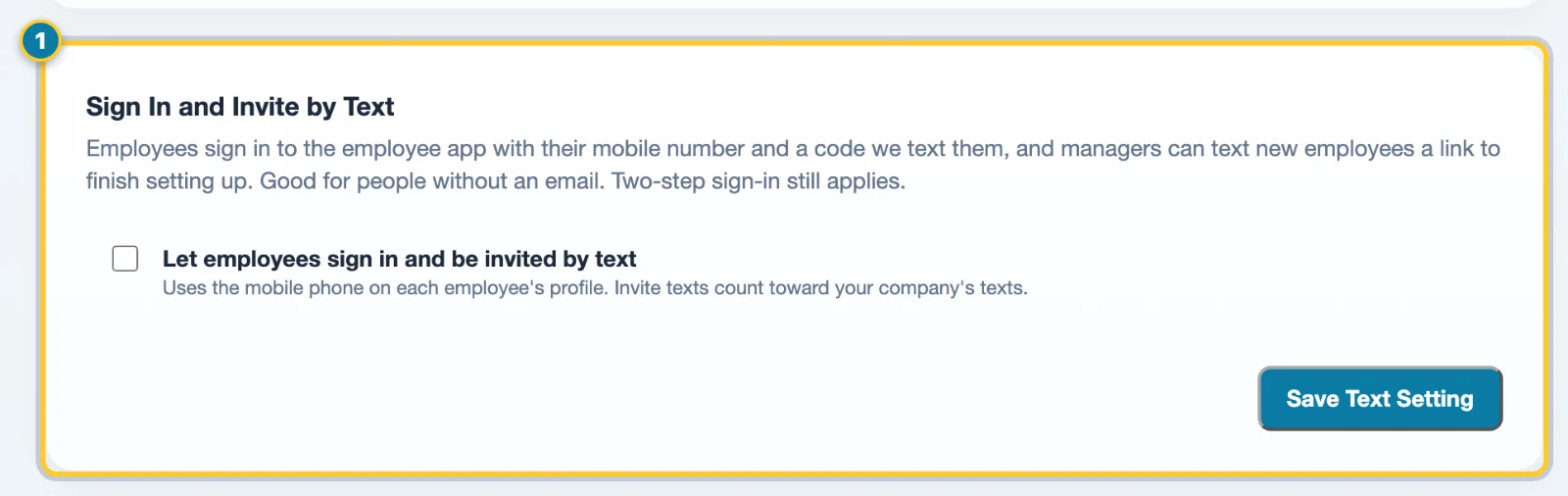
It's off until you turn it on. If the card says text message codes aren't turned on for AppyShift yet, it isn't available for now.
Invite someone by text
- When you add them, choose Invite now under Invite to the app. Someone with a mobile phone and no email gets the text right away. See Add an employee by hand.
- Or later: open their profile, select HR & Access and, on the Employee Portal card, select Send invite by text, then Send invite.
They get one text from AppyShift with your company's name and a link. The link works once, for 7 days. Opening it lets them choose a password (if you have their email) and signs them in. You can send at most three invites a day to one person. Invite texts count toward your company's texts.
If Send invite by text is missing
- Confirm text sign-in is enabled and saved in Company Settings.
- Check that the employee has a Mobile Phone and that you have permission to manage employee portal access.
- The invitation button appears only while employee portal access is disabled. Someone who already has access should use the employee sign-in page or its password-reset option instead.
How they sign in afterwards
- With an email on file: their email and password, or their phone number and a texted code.
- Without an email: their phone number and a texted code. The sign-in page shows Sign in with your phone number instead.
- Two-step sign-in still applies. If your company requires it, they set it up at their next sign-in.
Note
We never text a number that replied STOP, and nothing is texted while your account is paused. If someone's number changes, update their Mobile Phone before you invite them again.