Clock in from a phone
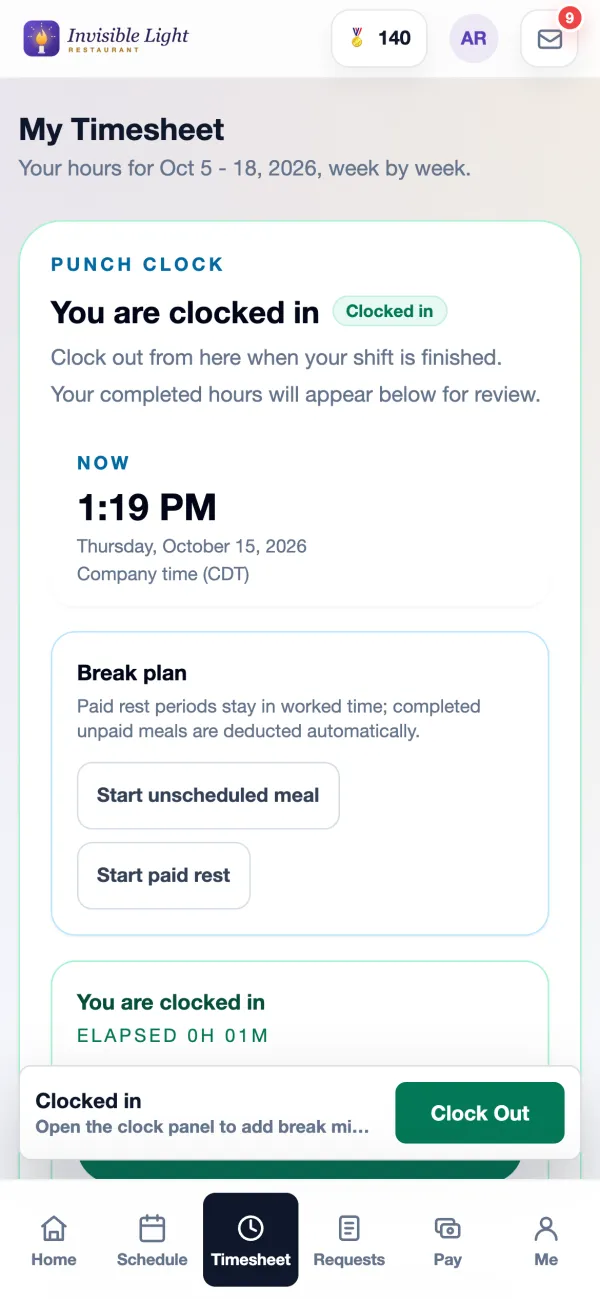
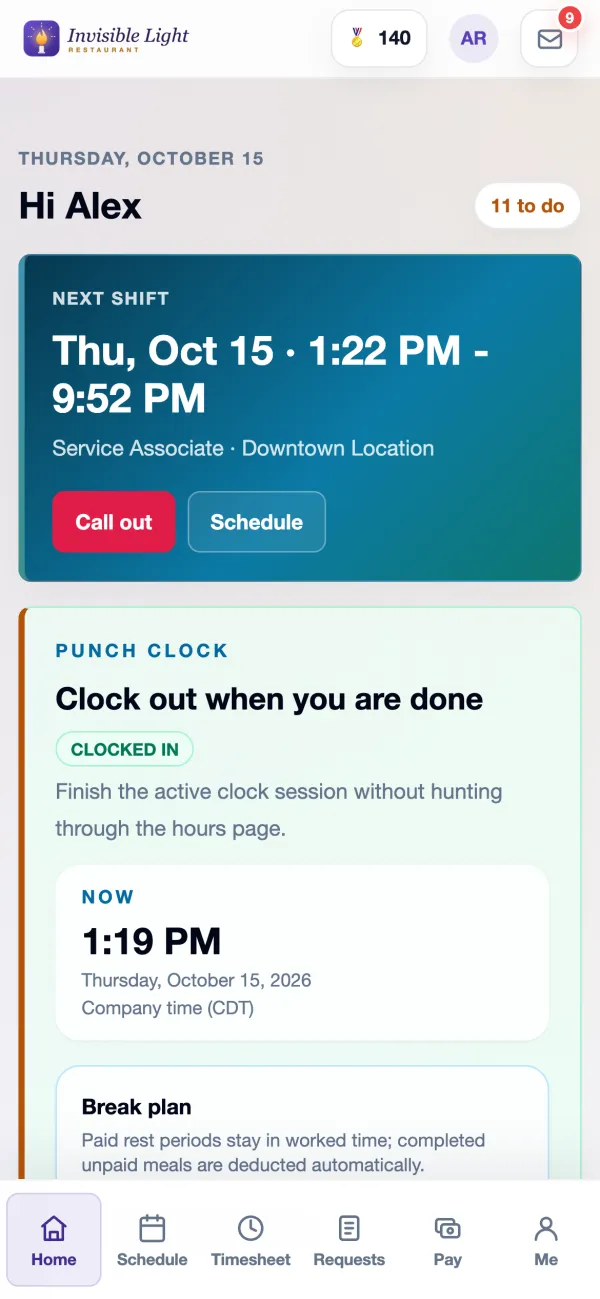
Clock in and out from Home or Timesheet, with the time shown in your company's time zone whatever the phone says.
AppyTime by AppyShift
Employees clock in and out, take breaks and fix missed punches from the app, or use one shared tablet. Managers approve the clean punches together, then Payroll Review turns approved hours, overtime, tips and extra pay into the file your payroll provider takes.
Included in every plan. See plans
At a glance
Clock in and out from Home or Timesheet, with the time shown in your company's time zone whatever the phone says.
A punch that is early, late or has no shift is flagged for review before it is saved, and the employee sees why.
Location is saved only at clock in and clock out. Block clock-ins outside the area, or let them through and flag them. Clock-out is never blocked.
Optionally allow punches only from your business Wi-Fi.
Start a planned break, an unscheduled meal or a paid rest, and end it from the same place. Unpaid meals come off the hours.
Any tablet becomes a time clock: badge or employee ID, a PIN, then Clock In, Start Meal, Start Rest, End Break or Clock Out.
Employees send missed time or a correction with what happened. Nothing changes until a manager approves, and the original punch stays on record.
A reminder 30 minutes after the shift ends, and an automatic clock-out after your limit, at the scheduled end, flagged for review.
Needs review puts problem punches first. Approve clean clears every punch without a problem at once.
Live attendance shows who is clocked in, who is late without a punch and who may have missed clocking out.
Employees ask for time off in the app and managers approve it. Accrual rules keep balances that employees can check themselves.
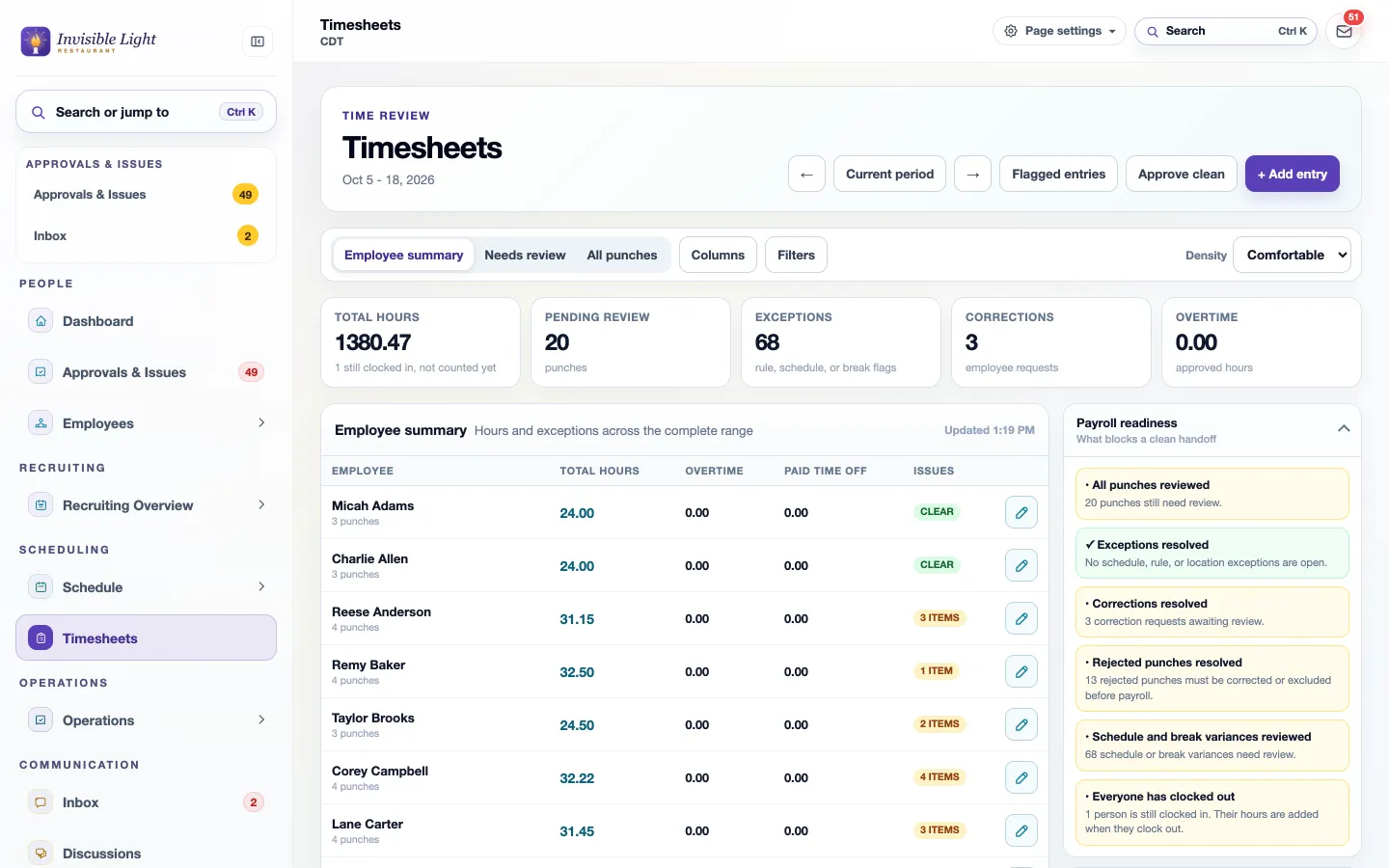
Payroll readiness checks off what's left: punches to review, corrections, rejected punches and anyone still clocked in.
Export approved hours for ADP, RUN Powered by ADP, Gusto, UKG, Paychex Flex, Paycom, Paylocity, or a generic payroll CSV.
Regular, overtime and double time per person, with differentials and premiums from your pay rules.
Missing or duplicate Payroll IDs, unapproved time, impossible hours, missing pay rates, overlapping entries and pay below minimum wage, caught before the import.
Tip pools, tips entered at the kiosk, bonuses, mileage and reimbursements. Only approved amounts reach the totals and the file.
Lock a pay period after the export so approved time and extra pay can't change by accident.
See it in the app
Every screen here is a real AppyShift page from our demo company, Invisible Light Restaurant. Open the demo to try it yourself.
The punch clock is at the top of Home and Timesheet. Once clocked in, it counts the time, shows the break plan and keeps Clock Out one tap away in the bar at the bottom of the screen.
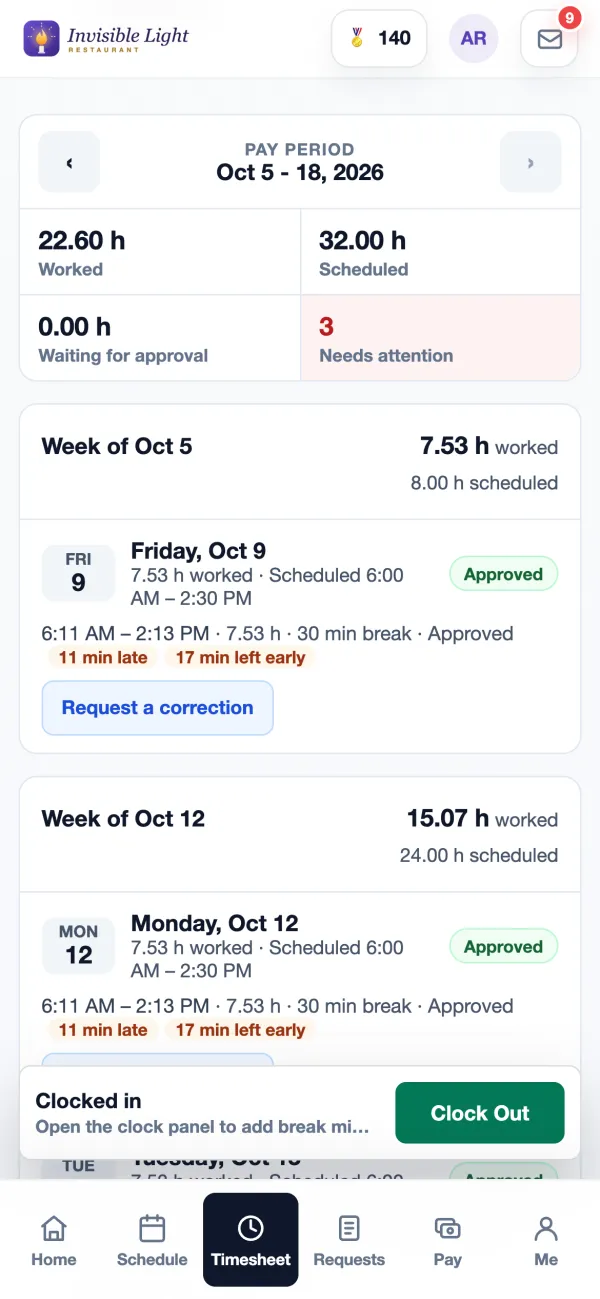
Below the clock, the pay period adds up: hours worked and scheduled, hours waiting for approval, and anything that needs attention. Each day shows its punches, breaks and status, with a button to request a correction.
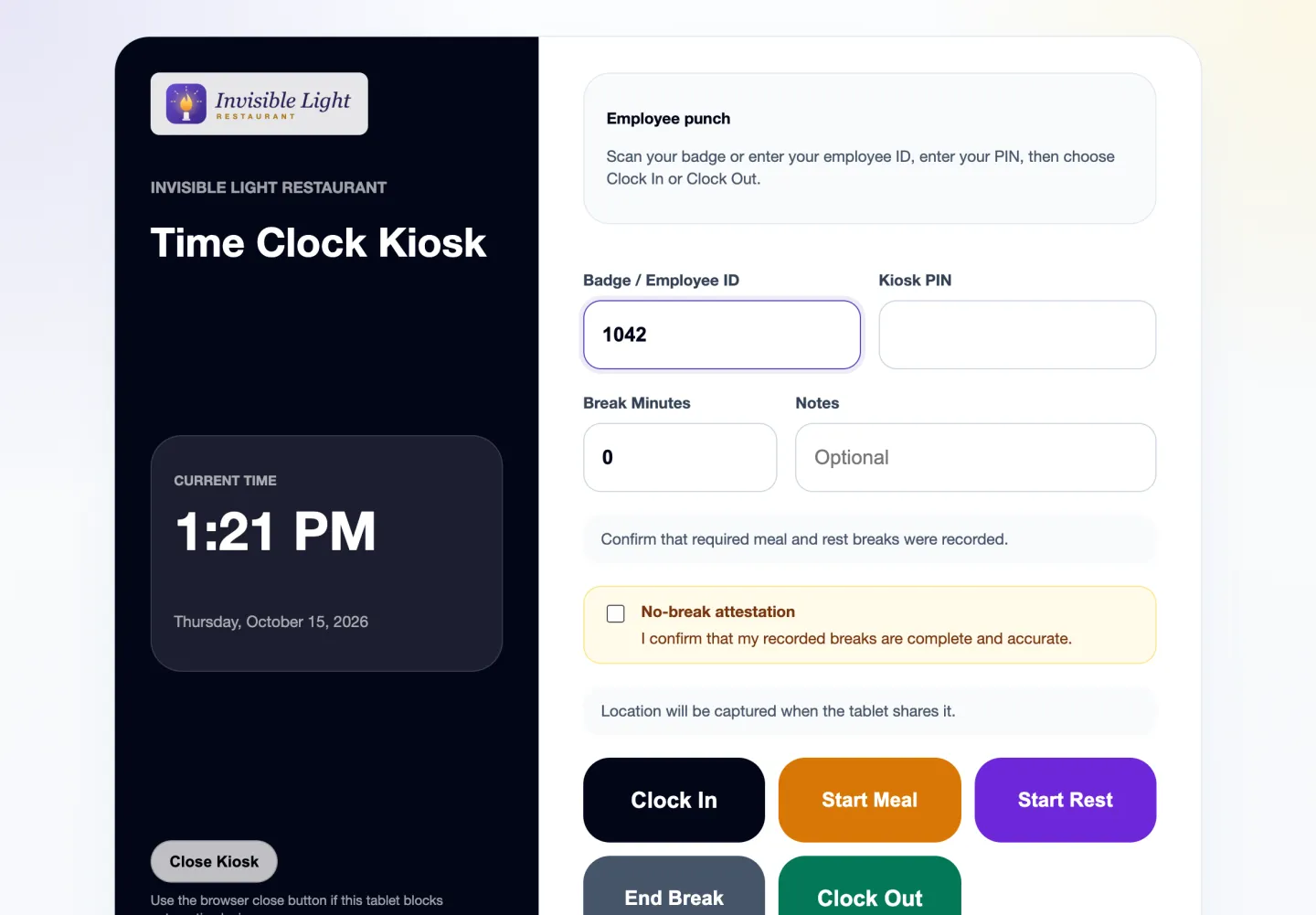
Turn on the shared kiosk, set a launch code, and open it on a tablet at work. Employees type or scan their badge, payroll or employee ID, enter their PIN if you require one, and choose what they're doing.
Timesheets opens on the current pay period with each person's hours, overtime, time off and issues. Approve clean approves every punch without a problem; the rest wait in Needs review. Payroll readiness on the right says what is left before export.
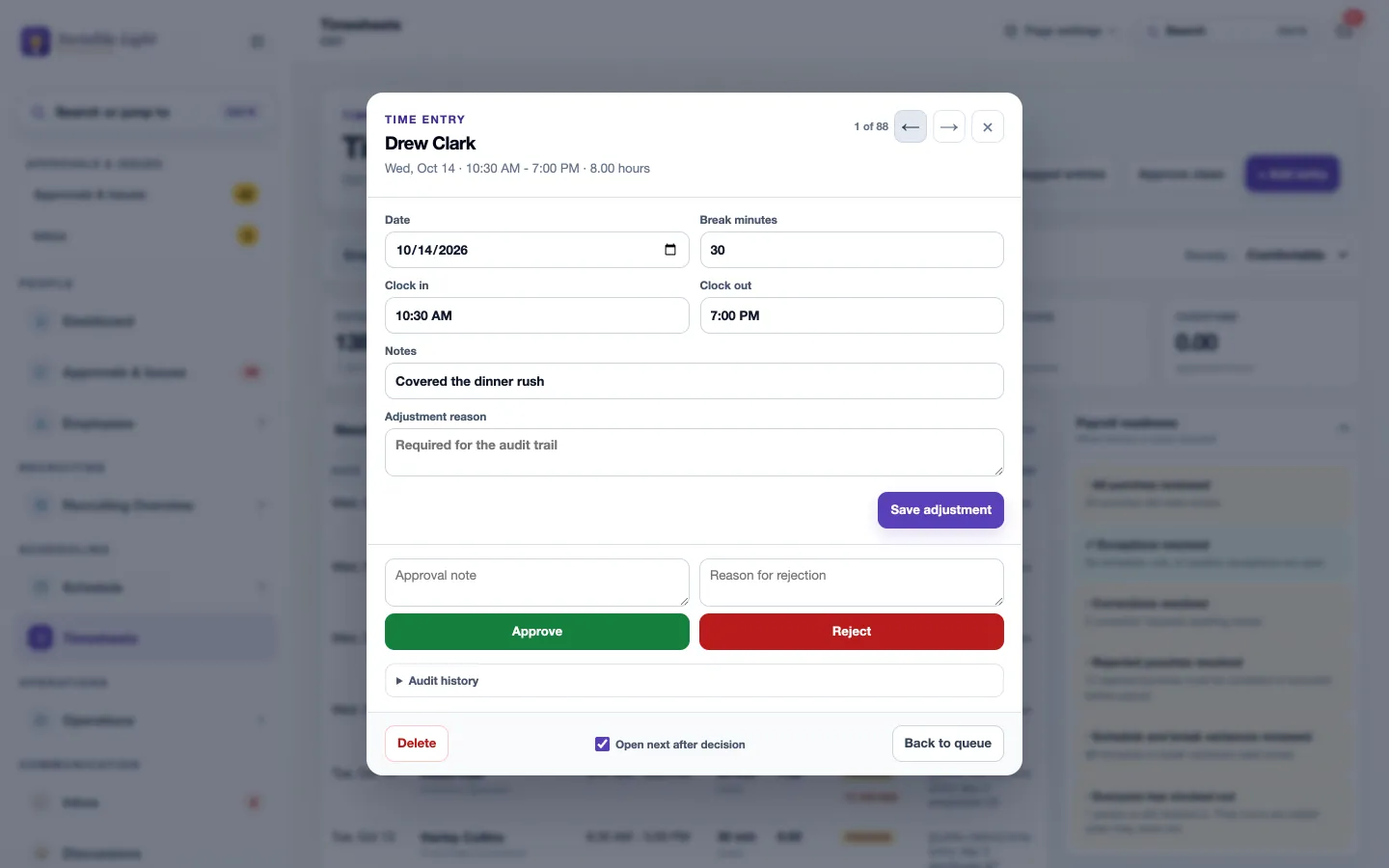
Open any punch to change the clock in, clock out or break with an adjustment reason, then approve or reject it. With Open next ticked, the next punch that needs a decision opens by itself.
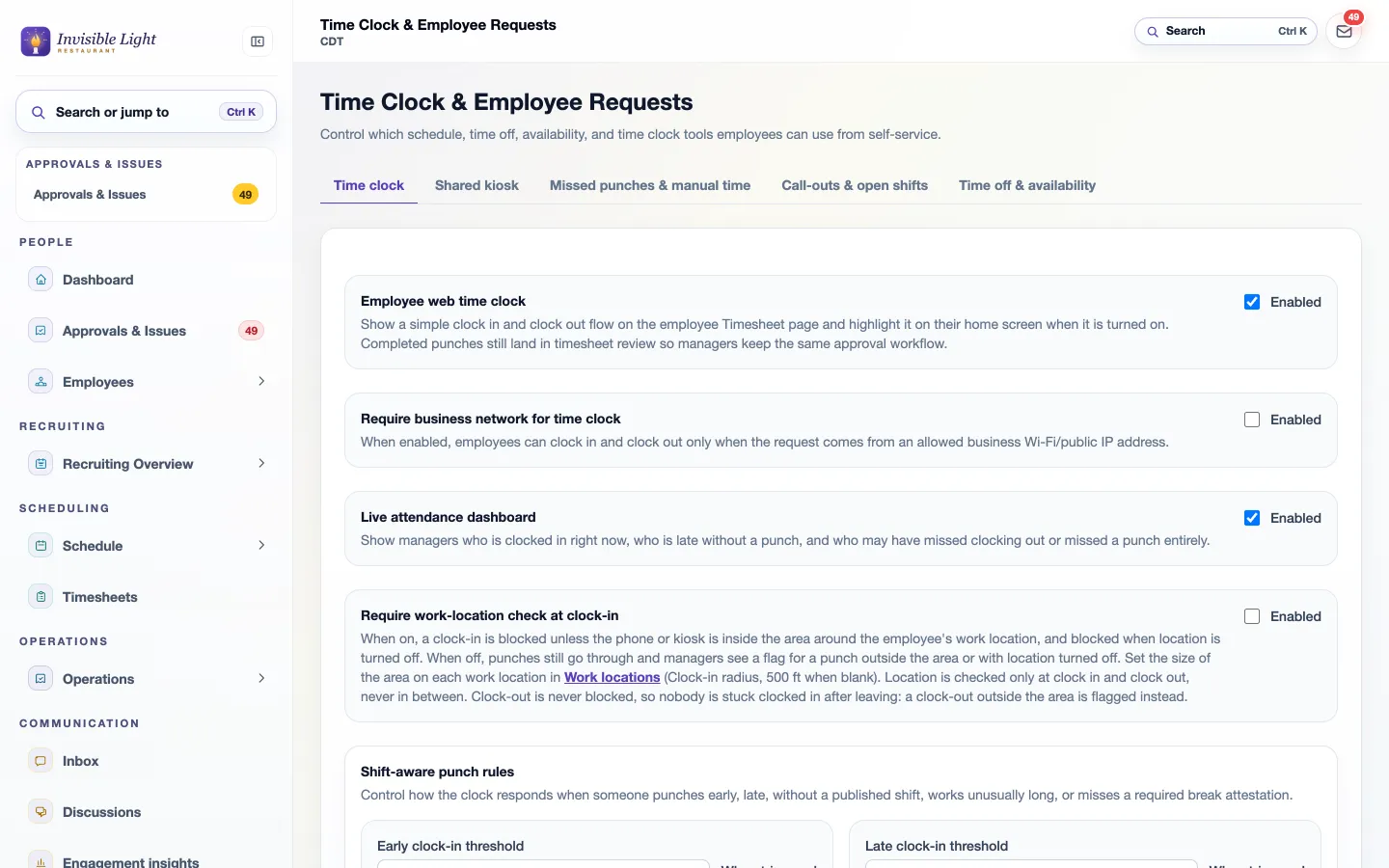
Turn on the employee clock and the kiosk, require the location check or your business network, and decide how early and late punches are handled. Missed punches and manual time have their own settings.
Pick the dates (or Current pay period), the format and your provider's company code, then work down the page: pay details, approved work, readiness, then the handoff. The downloads sit at the top.
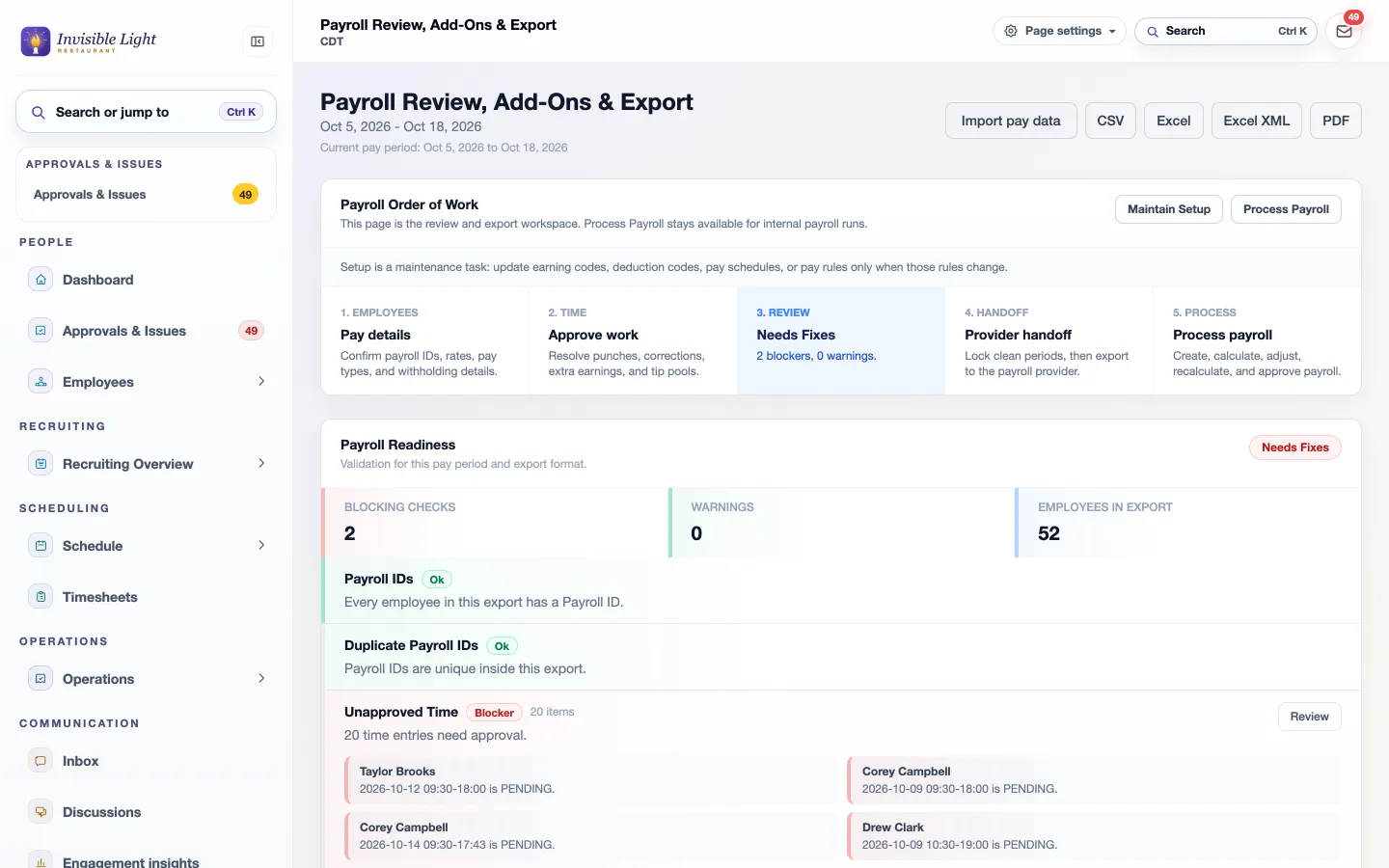
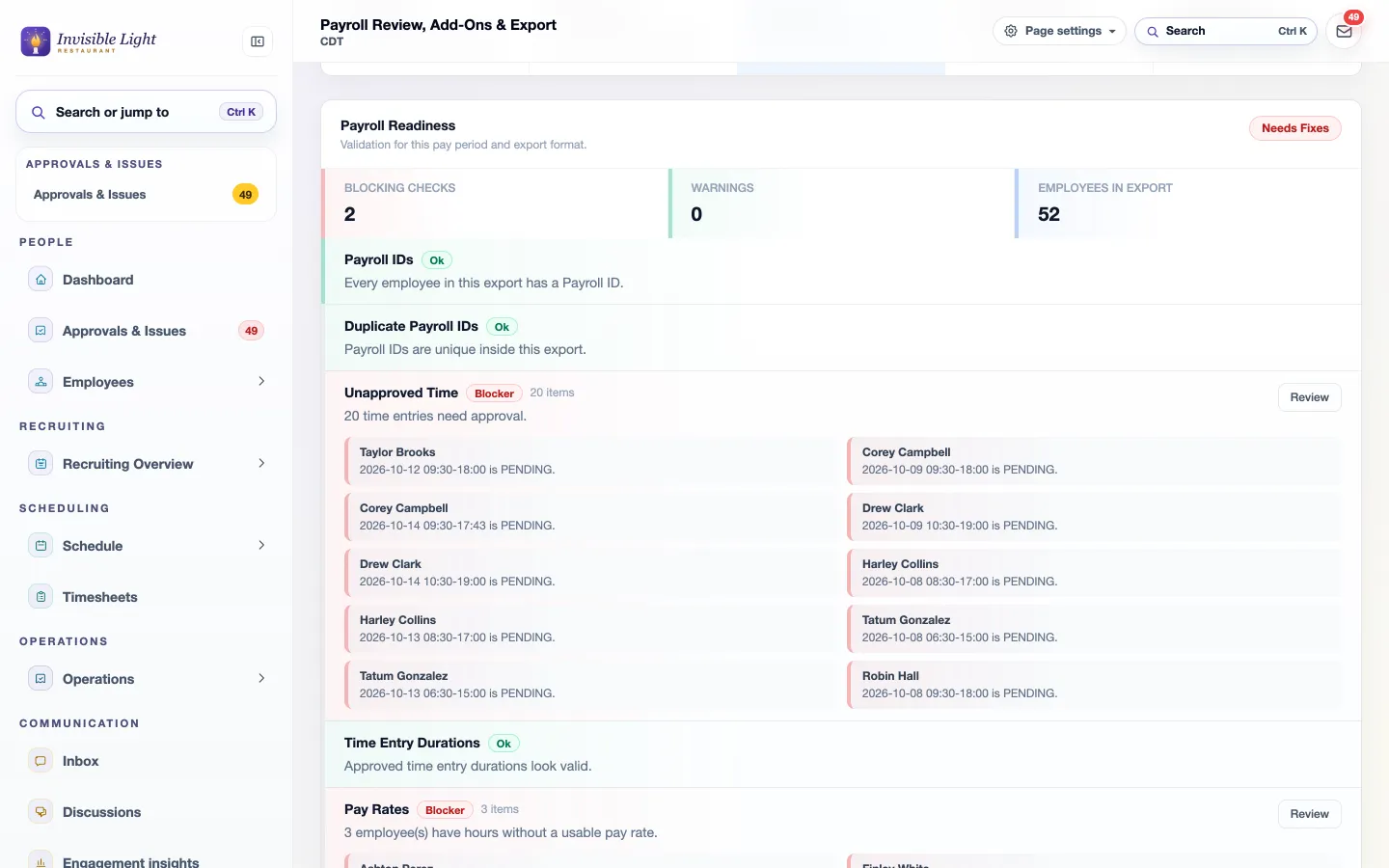
Payroll Readiness lists blocking checks and warnings for the dates and format you chose, each with a Review button that opens the record to fix. Here, 20 punches still need approval and a few people have no pay rate.
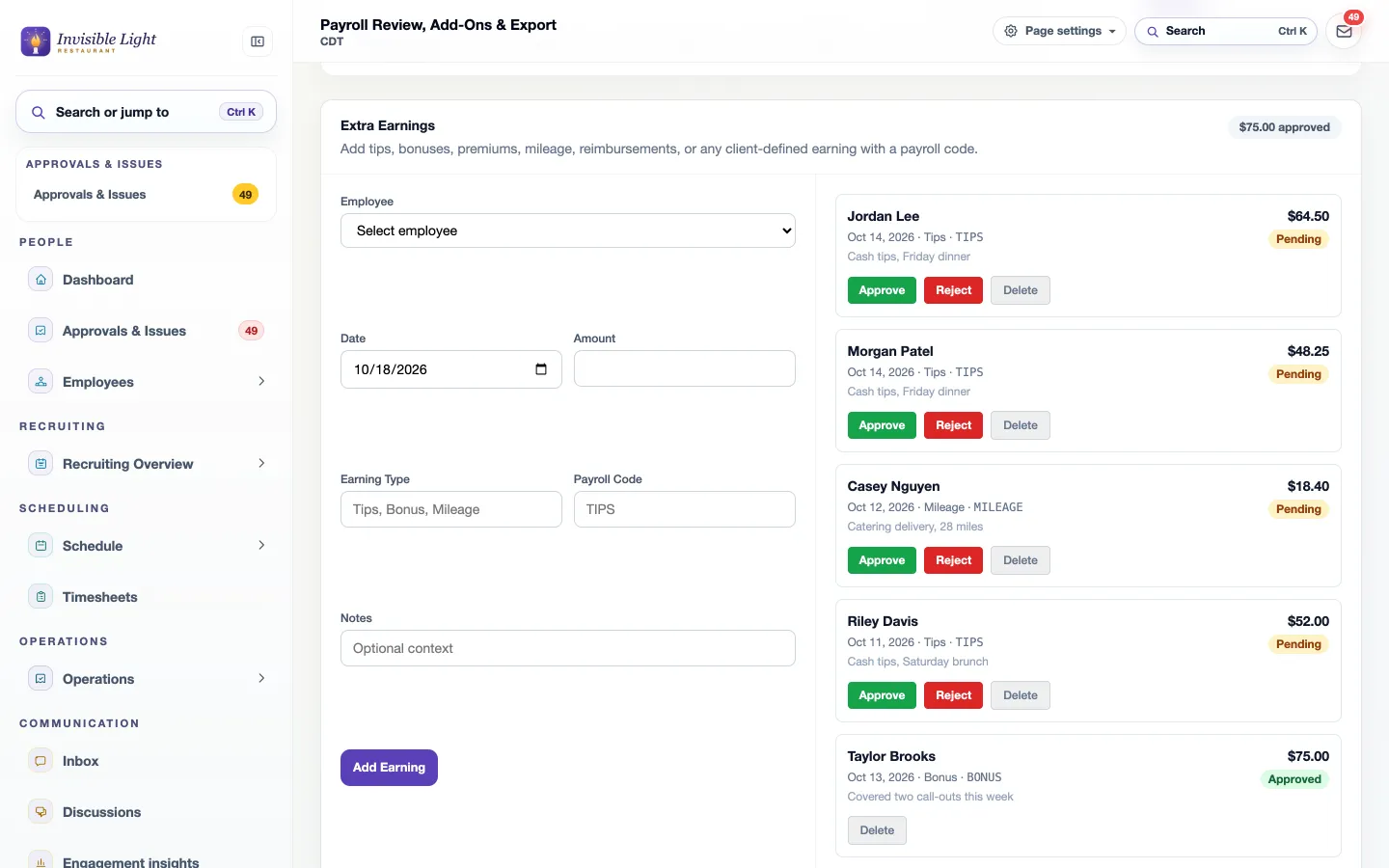
Amounts entered at the kiosk or by a manager wait under Extra Earnings with the person, date, type, payroll code and note. Approve adds them to the totals and the file; Reject keeps a record and leaves them out.
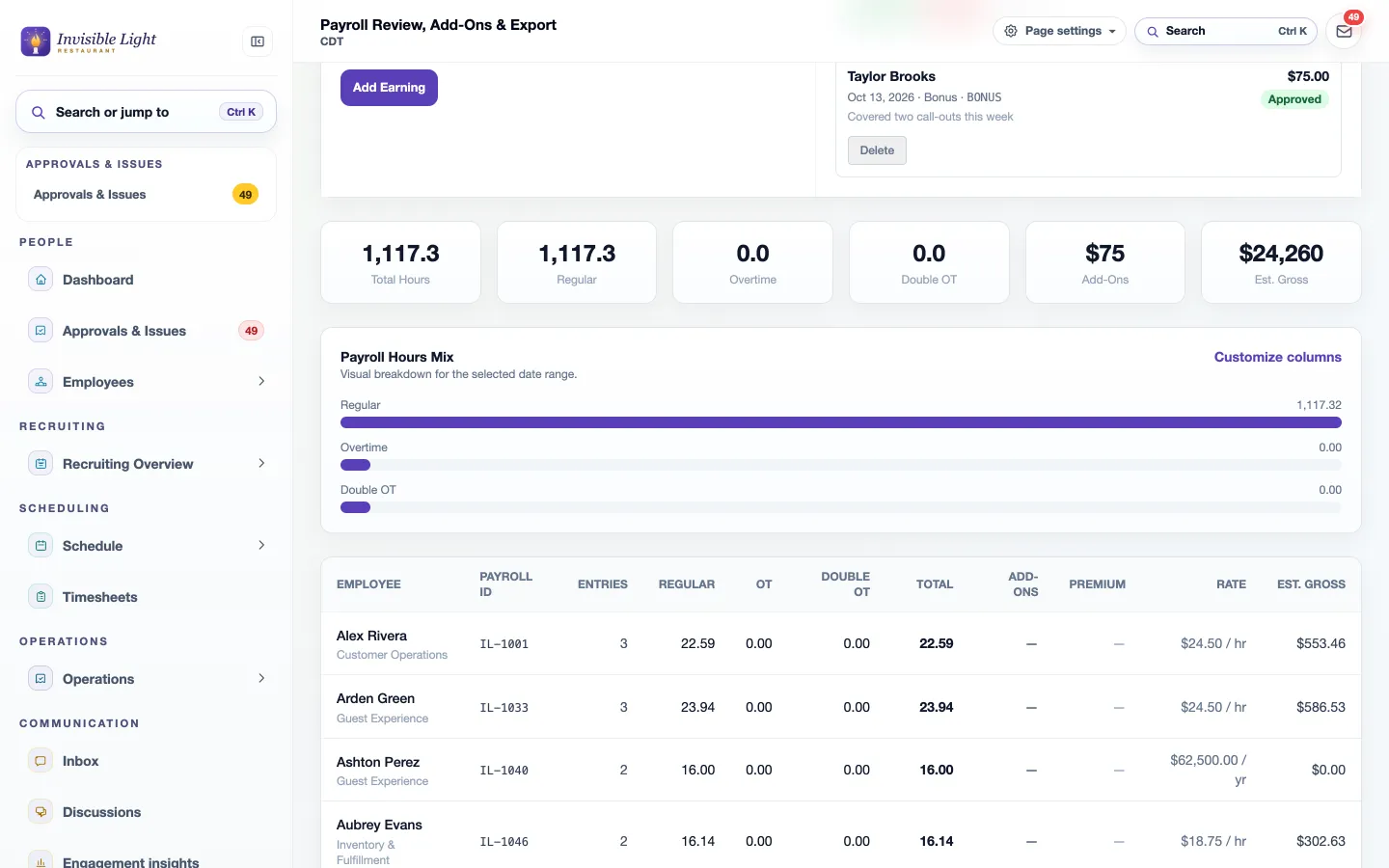
The totals show the period at a glance, then each person with their Payroll ID, entries, regular, overtime and double time hours, add-ons, rate and estimated gross.
Every feature, by plan
Included in every plan. Some features are for certain industries and are turned on in setup.
Enter your work email to begin your free-trial signup.
No. Location is saved only when someone clocks in and when they clock out, never in between, and only the people who review that employee's time can see it.
Yes. Turn on the work-location check and a clock-in outside the area around their work location (500 feet unless you set another radius) is blocked, and they see how far away they are. Leave it off and those punches go through, flagged for review.
They get a reminder 30 minutes after their shift ends. If they're still clocked in after your limit (24 hours unless you change it), AppyShift clocks them out at their scheduled shift end and flags the punch for a manager to check.
No. Any tablet or computer with a browser works. Employees type or scan a badge, payroll or employee ID, then a PIN if you require one. A launch code keeps the kiosk itself locked.
There are ready formats for ADP, RUN Powered by ADP, Gusto, UKG, Paychex Flex, Paycom and Paylocity, and a generic payroll CSV for anything else. You download the file and import it in your provider; Payroll Review remembers the format and company code you used last.
Payroll Readiness. It flags missing or duplicate Payroll IDs, unapproved time, impossible hours, missing pay rates, overlapping entries and more for the exact dates and format you picked. You can still download with a blocker, but the page tells you the file will be missing people or hours.
AppyTime is in every plan, with all of its features.
Yes. AppyPayroll runs payroll from these same approved hours, AppyShift files and pays your federal and state payroll taxes, and pay stubs and W-2s are in the app. It's an add-on, now in early access. Exports to your provider work the same either way.
Employee scheduling built for shift-based teams: build and publish schedules, manage availability, and keep everyone informed about when they work.
See AppySchedule →Payroll built into AppyShift: pay your team from the hours you already approved, and AppyShift files and pays your federal and state payroll taxes, with pay stubs and W-2s in the app.
See AppyPayroll →Enter each shift and unpaid break to calculate regular hours, overtime hours, decimal totals, and an optional gross-pay estimate. Everything stays in your browser.
Open the resource →Choose a payroll frequency and pay-date pattern, then account for weekends, Federal Reserve holidays, and your own bank closures. Export the finished schedule as CSV, calendar events, or a printable PDF. Everything stays in your browser.
Open the resource →Enter each rate worked in the same workweek to estimate the weighted regular rate, overtime hours, half-time premium, and total gross pay when straight time has already been paid.
Open the resource →The AppyShift modules
14 days free with every Pro feature. No credit card. Or open the demo first and click around.
Start free trial